Migrate Guideline
Migrate guideline for the VOID AR SDK.
Migrate from v1.0_Beta3 to v1.0_Beta4
In the original v1.0_Beta3 project, expand the directory [ Assets ] -> [ Plugins ] -> [ Android ], delete “
libVoidAR-Plugin.so”.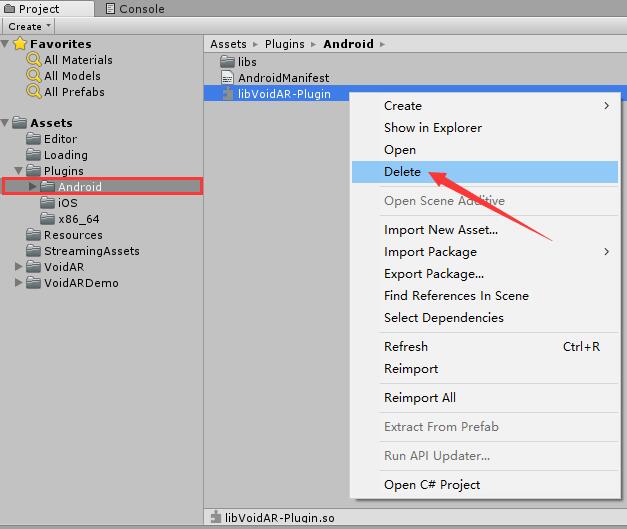
In the original v1.0_Beta3 project, expand the directory [ Assets ] -> [ Plugins ], delete “
VoidAR_Unity.dll”.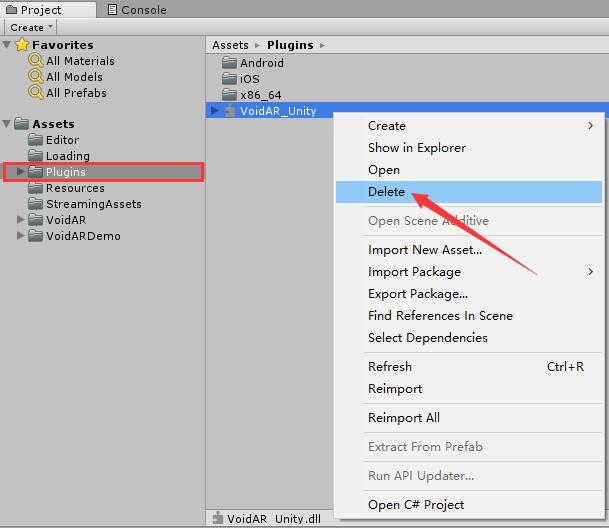
Import"
VOIDAR_Unity_v1.0_Beta4.unitypackage".If you need to import the Demo module, select the default option to import.
If you do not need to import the Demo module, you can uncheck the "VoidARDemo" folder.
By here, the VOIDAR_Unity_v1.0_Beta4 upgrade is done.
Migrate from v0.1.h_Patch1_Beta to v1.0_Beta3
Part 1. Feature Changes
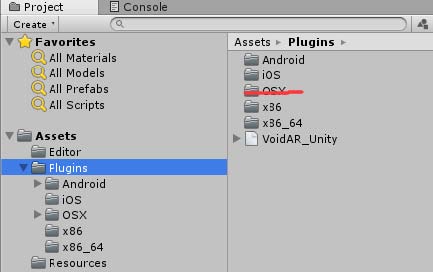
VOIDAR_Unity_v1.0_Beta3 does not support running on OSX platform, but building iOS app works OK.
VideoPlayback Component Change
Previous version: need to add two script components "
VideoPlayBehaviour" and "VoidVideoPlayer".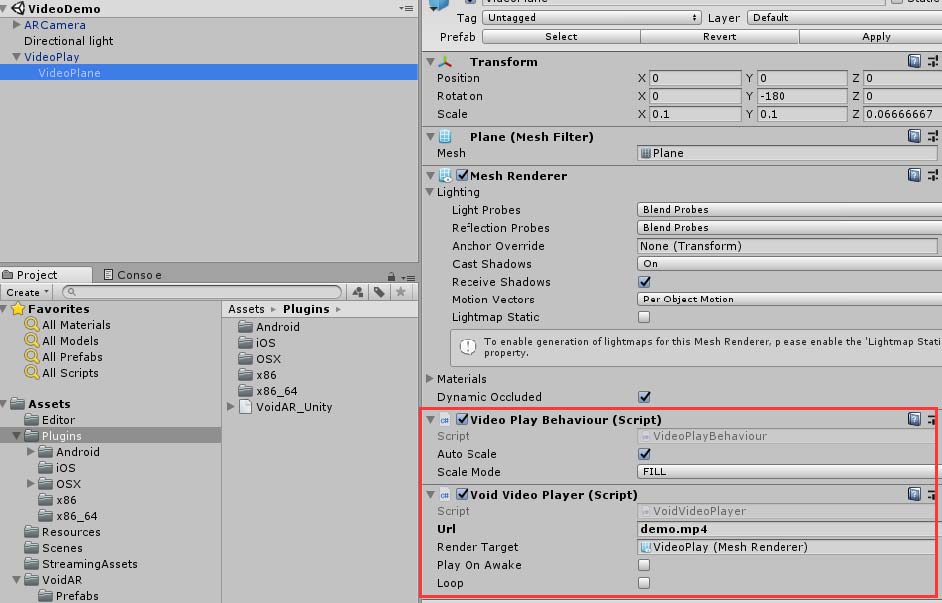
Current version: Only "
VideoPlayBehaviour" is required, and the video player is set at runtime.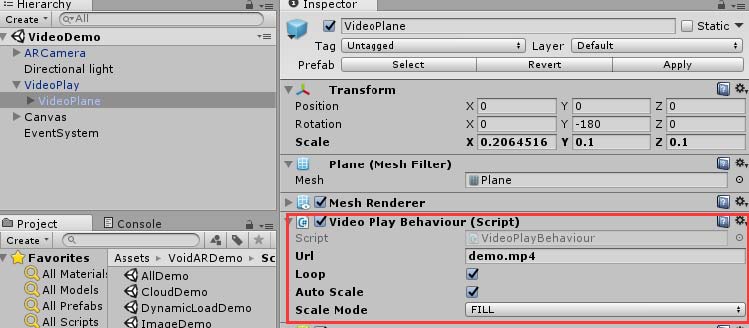
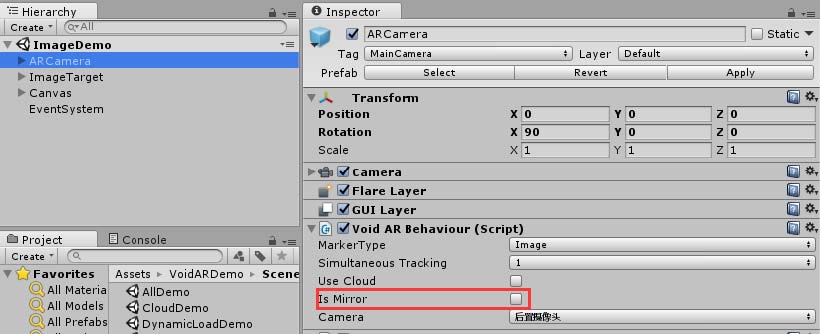
Image target recognition adds left and right mirroring options
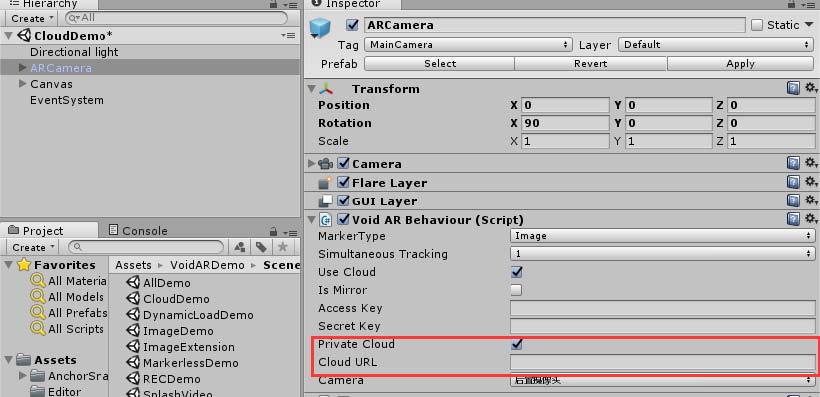
Cloud recognition adds support for private clouds
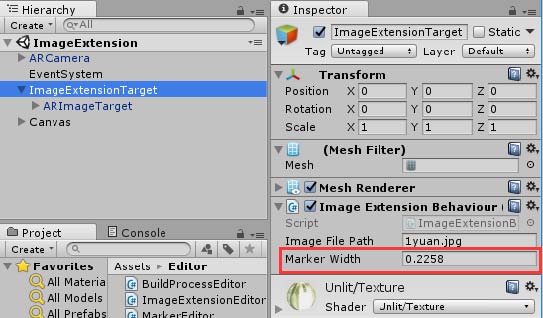
ImageTarget Extension Tracking功能 (Image target recognition and SLAM combination)
MarkerType changed from "Extension Tracking" to "
ImageExtension", and increase the "Marker width" property.and increase the "
Marker width" property.Note
Marker width is used to set the real width of the marker (m).
Markerless increases the size of the virtual scene (zoom) settings
Note
The value of SceneScale increases and the model in ARCamera becomes smaller.
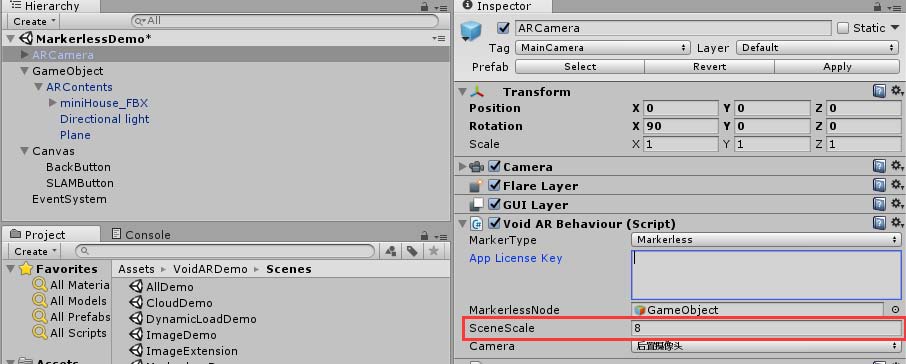
Part 2. Windows Platform Upgrade Steps
Backup the unity project first.
Create a new
empty scenein the current project. After saving, close Unity and re-open it to ensure that the empty scene is open.Note
If the Untiy editor has already run the VOIDAR SDK module, the upgrade will fail.
Import"
VOIDAR_Unity_v1.0_Beta3.unitypackage".If you need to import the Demo module, select the default option to import.
If you do not need to import the Demo module, you can uncheck the "VoidARDemo" folder.
If the Demo module is imported, a script error will be prompted after the import is completed (if you have not imported the Demo module, skip this step).
Assets/VoidARDemo/Scripts/VideoPlayback.cs(1 7,46): error CS1061You can delete videoplayback.cs directly. The script has been deprecated in the new Demo.
By here, the VOIDAR_Unity_v1.0_Beta3 upgrade is done.