Environment Illumination
Note
Environment Illumination is applicable for all the AR scenes with models except for video features.
Part 1. Introduction
Environment Illumination makes it possible for virtual models to reflect the real environment textures.
Adding realistic reflections to achieve more immersive AR experience.
Part 2. Reading Guidelines
This tutorial is mainly to introduce how to process in Unity environment.
We assume that readers have basic experience in app development and unity usage.
For more unity3d usage information, please visit the official website of unity3d documentation.
Part 3. Development Environment
You need to install and prepare your development environment as below before you start.
OS
- Windows 7 or higher
- OS X 10.10 or higher
Unity Version Support
| Unity3D Version | VOID AR SDK Full Features |
|---|---|
| 5.6.x | Support All Features |
| 2017.x | Support All Features |
| 2018.x | Support All Features |
| 2019.1.x | Support All Features |
| 2019.2.0 | Support All Features |
Note
Unity3D of this tutorial: Unity 2017.4.13
Unity3D Download: https://unity3d.com/cn/get-unity/download/archive
Part 4. Implementation process
Step 1. Open new Unity project
Important
In this tutorial we will set up Environment Illumination based on "VOID SLAM(Markerless)".
If you're not familiar with VOID SLAM, we suggest you read “VOID SLAM (Markerless)” first.
Step 2. ARCamera Setup
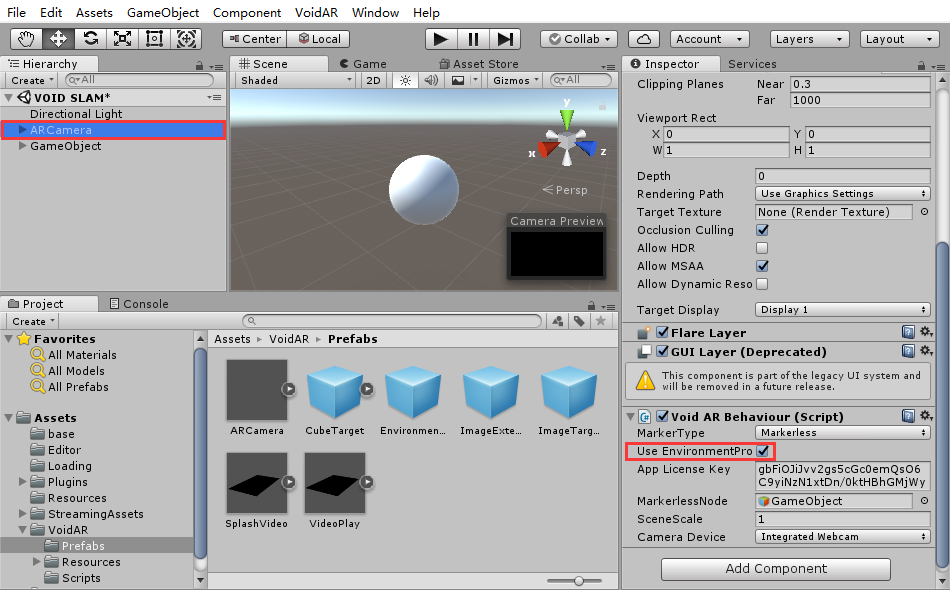
Select ARCamera, and look up in the “Inspector” area on the right side, setup “Void AR Behaviour (Script)” properties.
Check “Use EnvironmentPro”
Step 3. Create Material
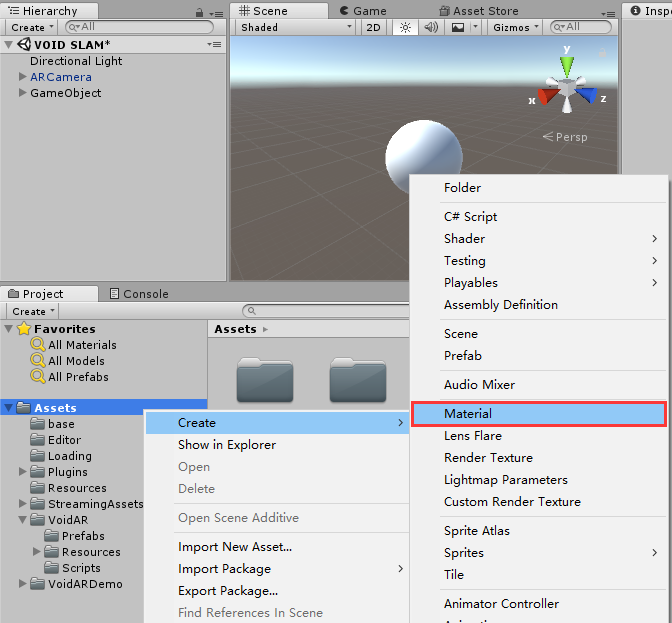
Right click the “Assets”, select “Create” from pop menu, and click [ Material ].
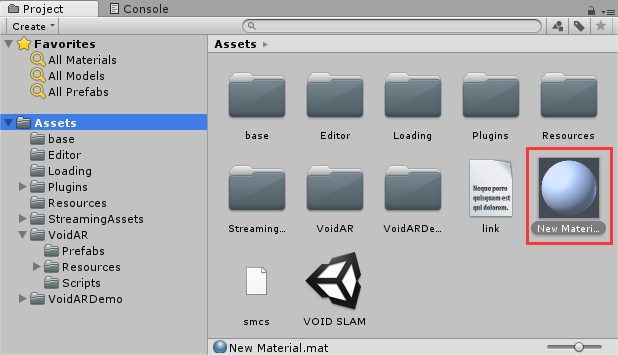
Then you create a "New Material" under the Assets directory.
Step 4. Drag Material to model
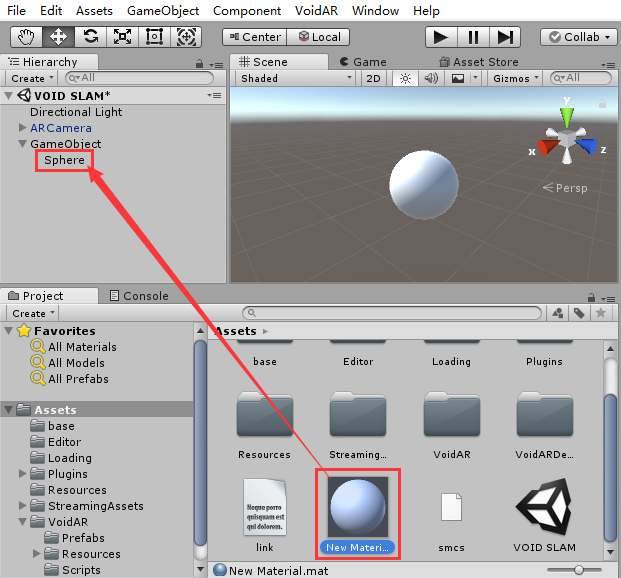
Expand “GameObject”, then left-click on “New Material”, hold it down and drag it onto the “Sphere” model.
Step 5. Setup Parameters
Select Sphere, look up in the “Inspector” area on the right side, and expand the “New Material” setting.
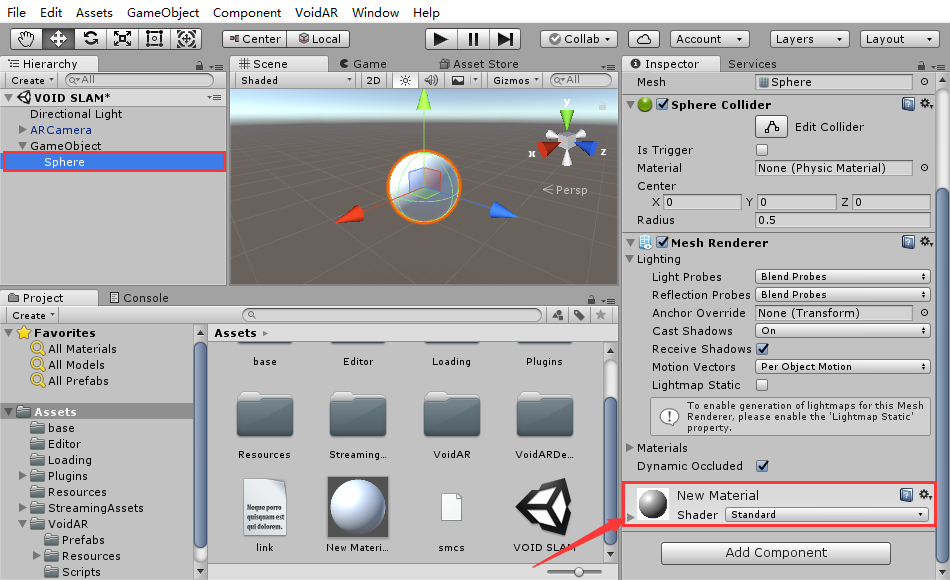
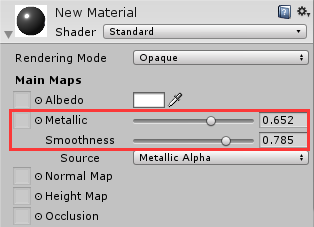
Setup “Metallic” and “Smoothness” in Shader to add reflect attribute to models.
Note
With higher Metallic level the reflection is more vivid, adjust the level as you need.
Step 6. Publishing Builds
Build Process please refer to tutorial “VOID SLAM (Markerless)”.
Part 5. Procedure of Use
After building, you can run it in your mobile device.
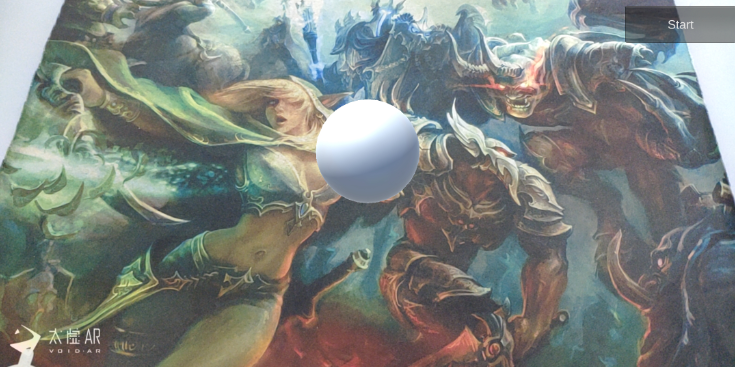
Original Effect:
Environment Illumination:
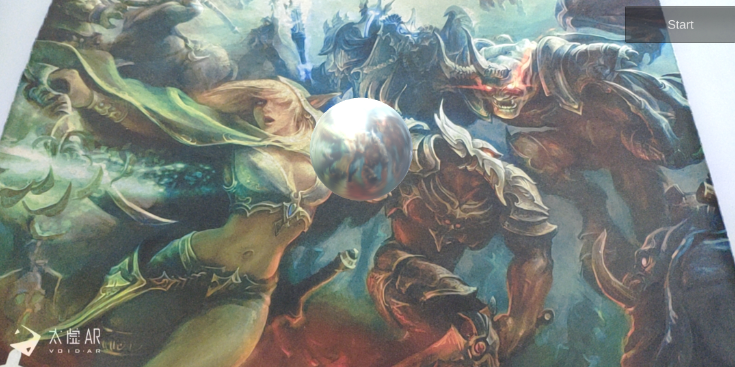
By here, Environment Illumination process is done.